Sign
Last updated: June 9, 2026
Overview
The Sign step sends documents for electronic signature as part of a workflow. Use Sign when a contract or agreement requires binding signatures from internal users, external counterparties, or both.
Sign supports two signature providers — DocuSign and Chamelio Sign — and creates a task for the assigned coordinator to manage the signing process. The step produces a signed document as output, available for downstream processing such as storage or notification.
Use When
A generated or negotiated document requires formal signatures before it is finalized
You need to collect signatures from both internal users and external counterparties
Signature routing must be coordinated by a specific team member
You want to automatically archive the signed copy to the Contracts repository on completion
You need to send signers a customized subject line and message alongside the signing request
Configuration Options
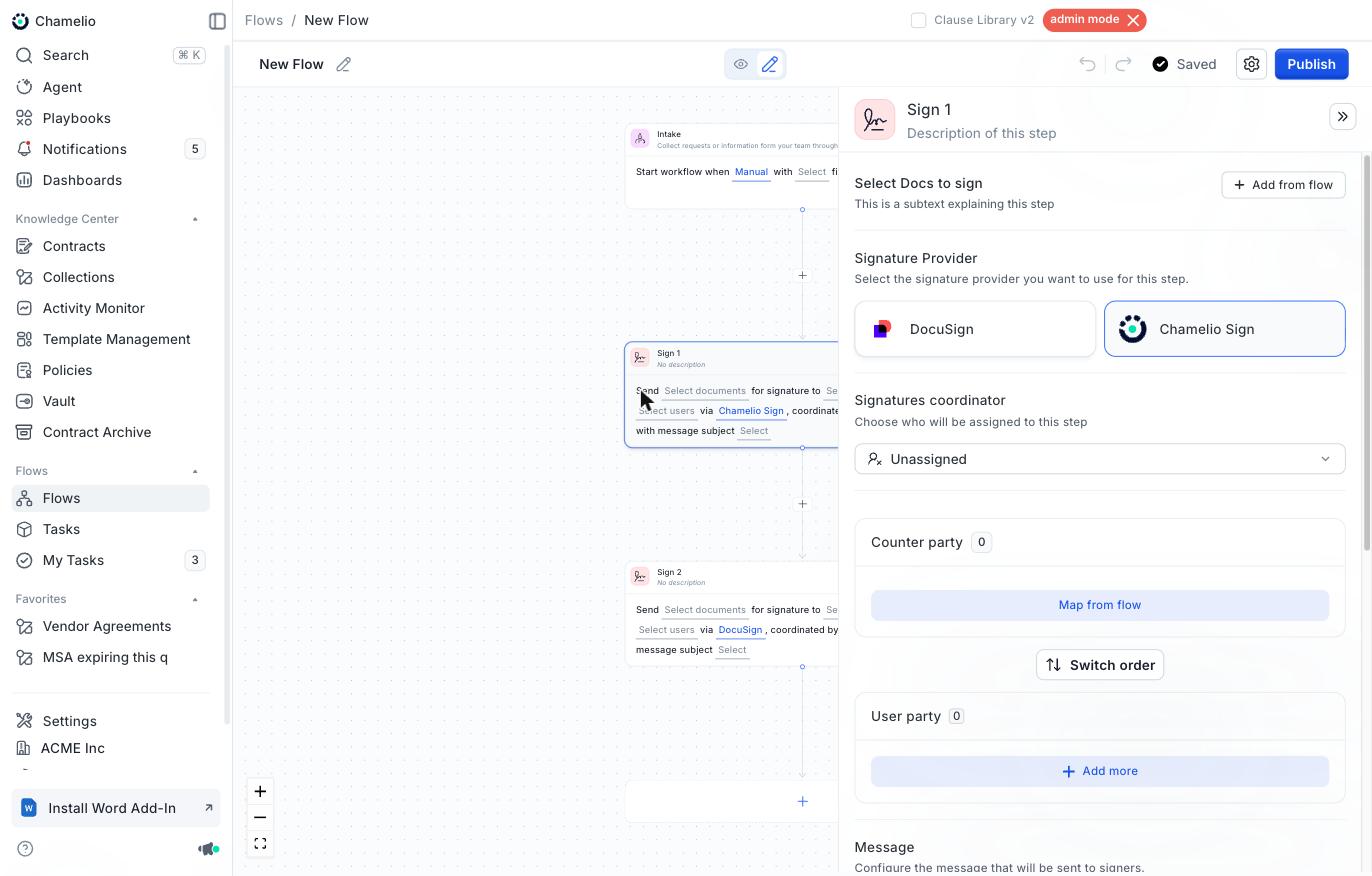
Documents to Sign
Select which documents from the flow will be sent for signature. Use "Add from flow" to reference outputs from earlier steps (e.g., a document generated by a Generate step). Multiple documents can be added.
Important: when using a Sign step, ensure the Generate step output format is set to Word. PDF output is not compatible with signature placeholder handling.
Signature Provider
Choose the e-signature platform to use for this step:
DocuSign — Uses your organization's DocuSign integration to send and manage envelopes
Chamelio Sign — Uses Chamelio's native signing capability without a third-party integration
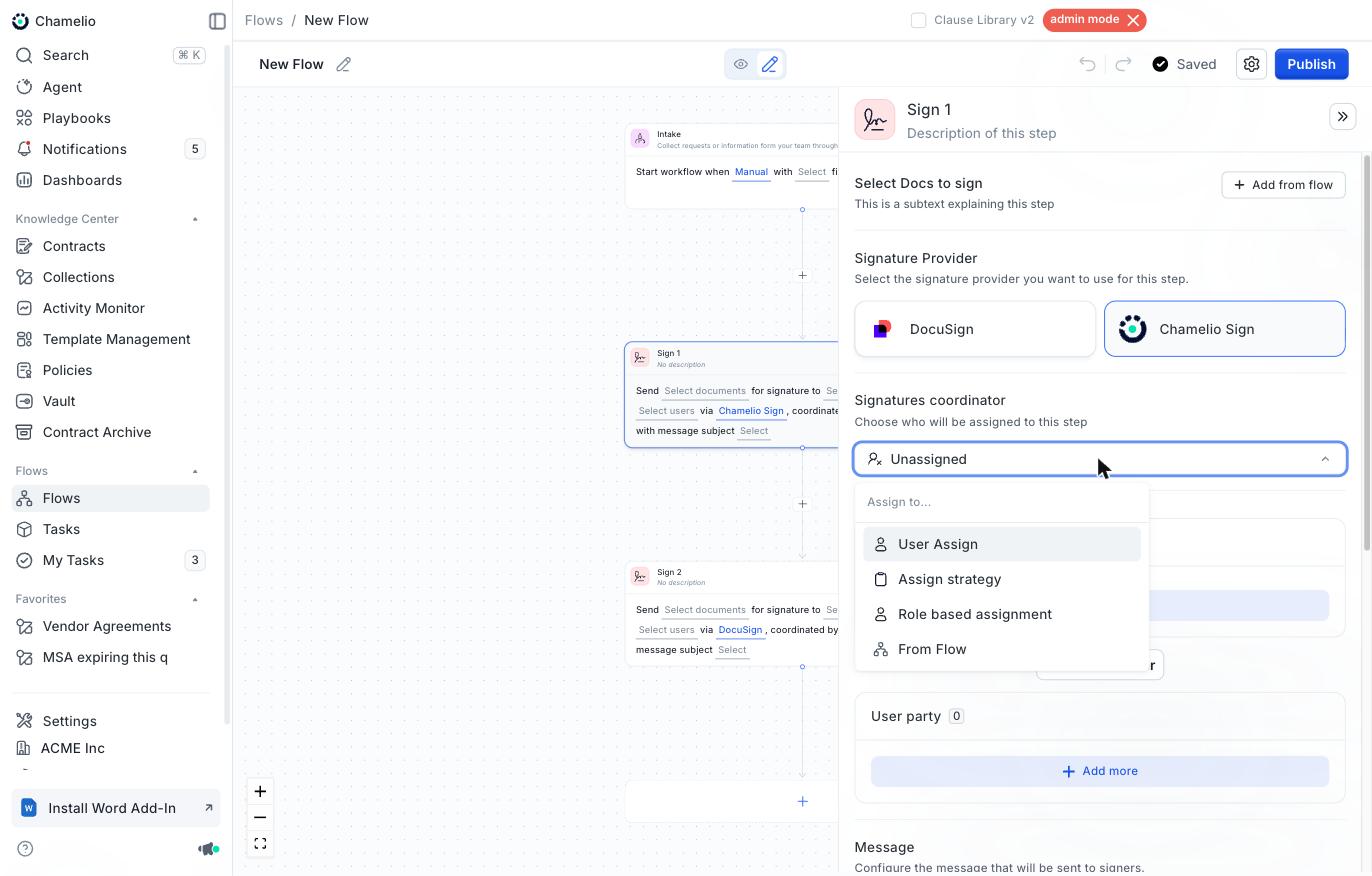
Signatures Coordinator
Assign a team member to oversee and coordinate the signing process. The coordinator is responsible for managing the step and is reflected in the task created.
When using DocuSign, the coordinator is also the account from which the DocuSign envelope is created and sent — meaning the envelope will appear as coming from that person's DocuSign account. This can be overridden at the workflow level by setting a Global Signing Account in the flow settings (see below).
Assignment options:
User Assign — Select a specific named user
Assign strategy — Distribute coordination using Round Robin or other logic
Role based assignment — Assign based on the requester's or owner's role
From Flow — Dynamically assign based on a flow variable from an earlier step
Counter Party
Add external signers (e.g., vendor contacts, customers). For each counter party, provide:
Name — Map from a flow variable or enter a static value
Email — Map from a flow variable or enter a static value
Signer role — Choose Signer (must sign) or Viewer (receives a copy, no signature required)
Multiple counter parties can be added using Map from flow. Use Switch order to control the signing sequence between parties.
User Party
Add internal signers from your organization. Assignment options:
User Assign — Select a specific named user
Role based assignment — Assign based on predefined roles
From Flow — Dynamically assign based on a flow variable
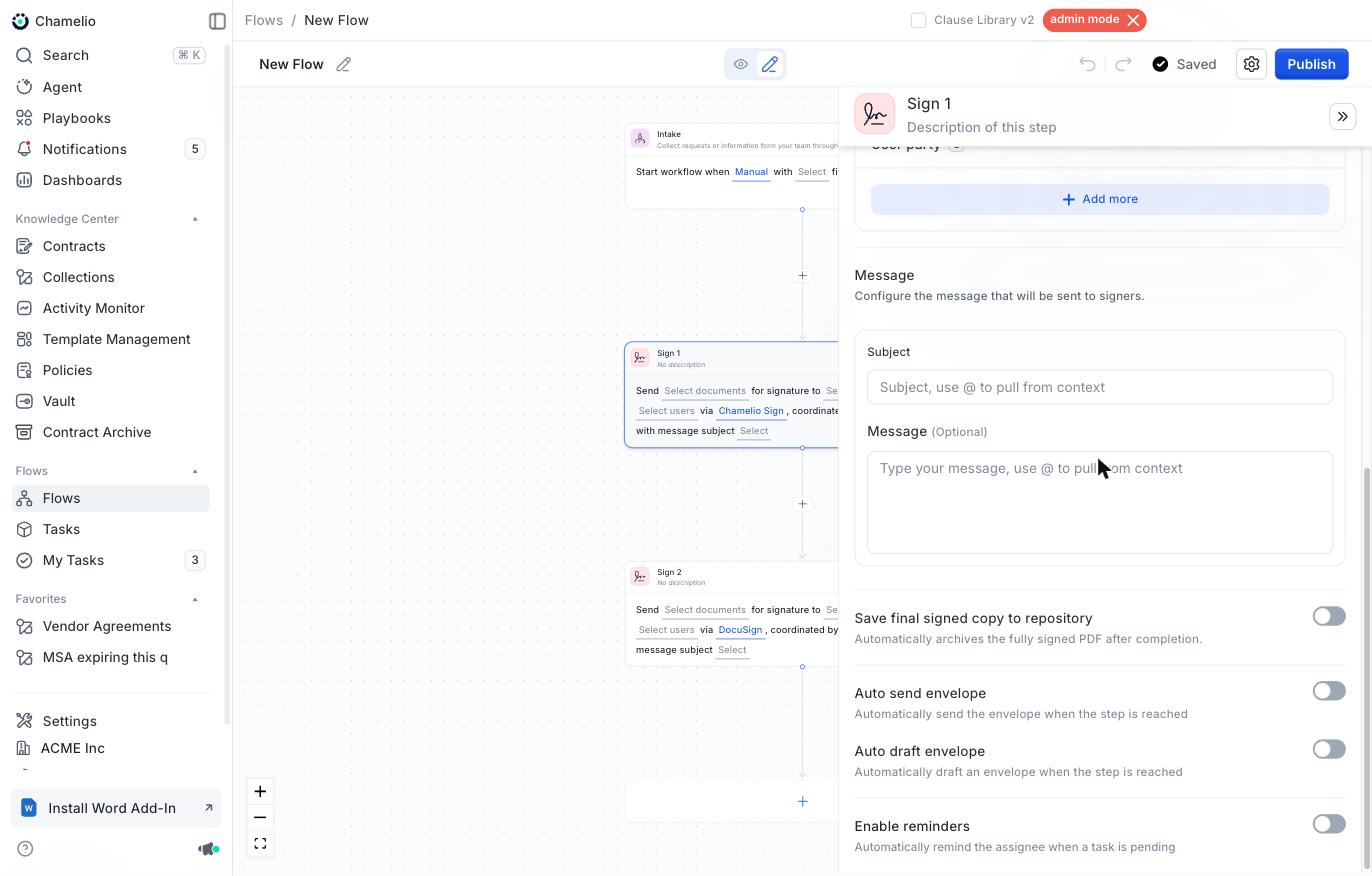
Message
Configure the email notification sent to all signers:
Subject — The email subject line. Supports @ variable syntax (e.g., @Intake.CustomerName)
Message (Optional) — Additional body text sent alongside the signing request
Additional Options
Save final signed copy to repository — Automatically archives the fully signed PDF to the Contracts repository when all signatures are complete
Auto send envelope — Automatically sends the signing envelope when the step is reached (DocuSign: requires organization-level integration; Chamelio Sign: available by default)
Auto draft envelope — Automatically creates a draft envelope when the step is reached, without sending it until manually triggered
Enable reminders — Automatically reminds the assignee when a task is pending (Chamelio Sign only)
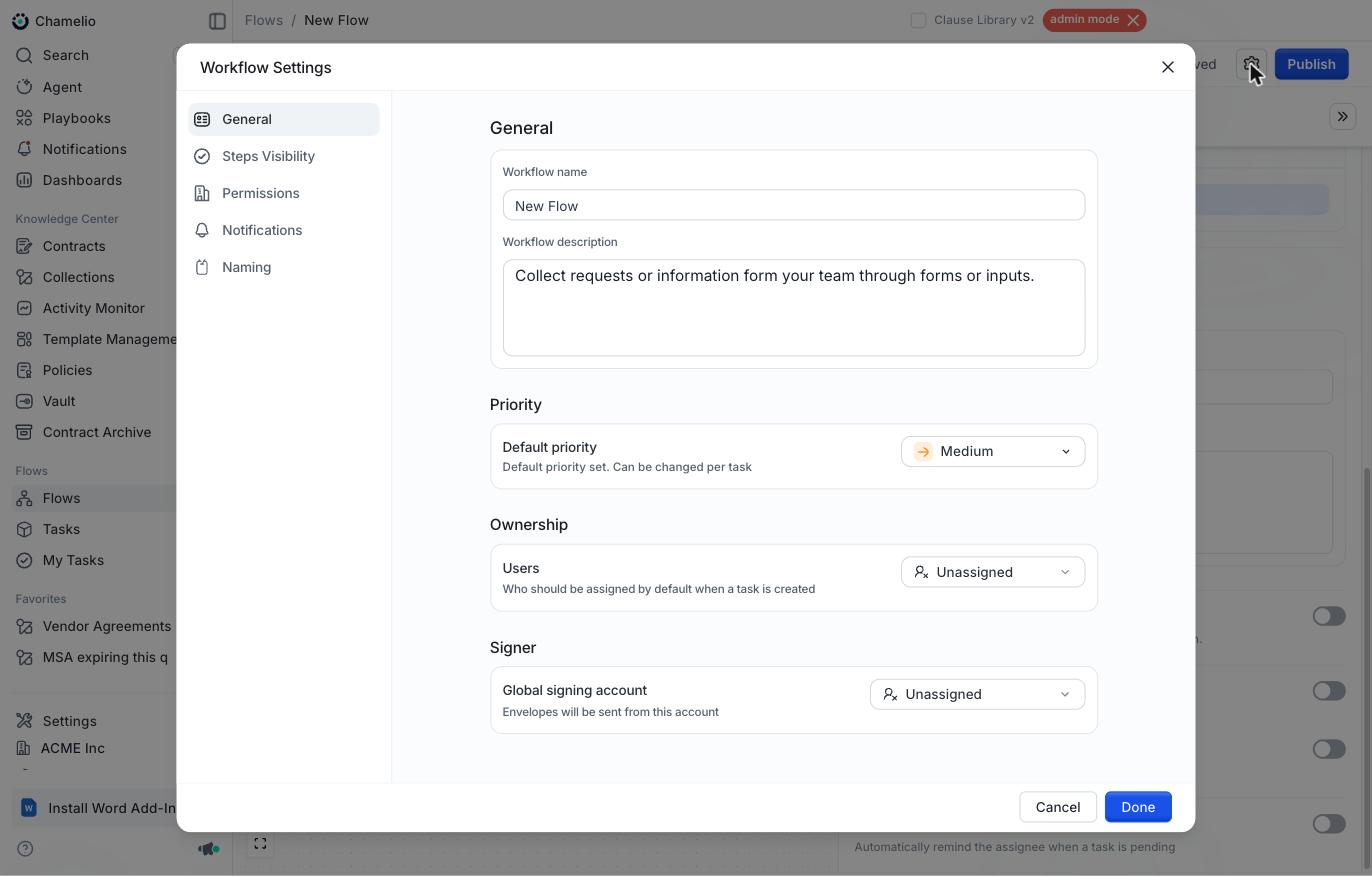
Global Signing Account (Flow Settings)
When using DocuSign, you can designate a single account from which all envelopes in the workflow are created and sent. This is configured in the workflow's Settings under Signer → Global signing account.
When set, it overrides the per-step coordinator as the DocuSign sender for every Sign step in the flow — useful for ensuring all envelopes originate from a consistent, authorized account regardless of who the coordinator is on individual steps.
Notes
The Sign step creates a task for the assigned coordinator
When using DocuSign, the coordinator's account is used to create and send the envelope — set a Global Signing Account in flow settings to standardize this across the workflow
Signer role can be set to Viewer for parties who should receive a copy without signing
Switch order controls the signing sequence between counter party and user party groups
Auto send envelope and Auto draft envelope behavior differs slightly between DocuSign and Chamelio Sign
Enable reminders is available only when using Chamelio Sign