Flow Settings
Last updated: September 7, 2026
Overview
Workflow Settings allow you to configure the behavior, visibility, access, and notification rules for a flow. To open Settings, navigate to your flow and click the ⚙ Settings icon in the top-right toolbar.
General
The General tab defines the core identity and defaults for the flow.
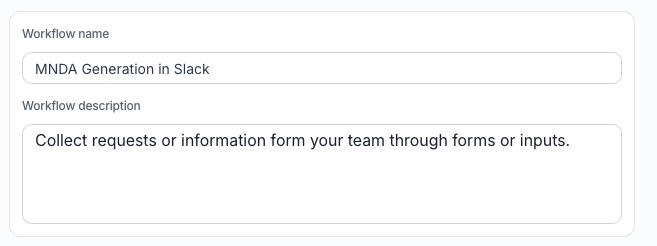
Flow Name The display name for this flow. This is what team members will see when browsing or submitting requests (e.g., "Contract Review and Approval").
Flow Description A short explanation of what the flow does or who it's for. This helps requesters understand the purpose before they submit.
Priority Sets the default priority level that new tasks in this flow will receive. Priority can always be changed on a per-task basis. Available options are Low, Medium, and High.

Ownership – Users Defines which user is automatically assigned as the owner when a new task is created. If left unassigned, tasks will not have a default owner unless specified at the task level.

Signer Sets a default signer for signature steps in the flow. If no signer is specified at the task level, this default will be used.

Steps Visibility
The Steps Visibility tab controls whether requesters can see the individual steps of a flow as their task progresses.
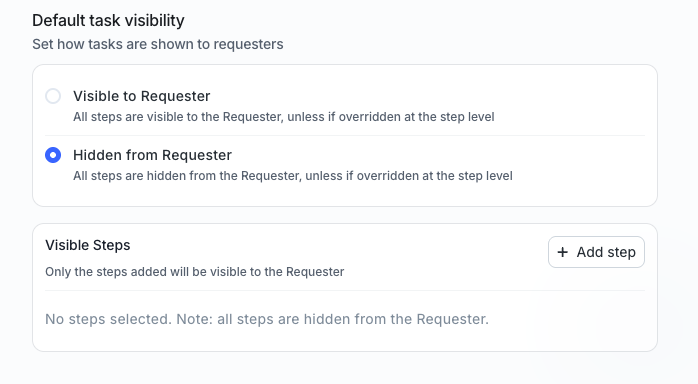
Default Task Visibility Choose one of two modes:
Visible to Requester — All steps are visible to the requester by default. This can be overridden on individual steps.
Hidden from Requester — All steps are hidden from the requester by default. This can be overridden on individual steps.
Visible Steps When "Hidden from Requester" is selected, you can use this section to selectively expose specific steps. Click + Add step to choose which steps the requester will be able to see. Any step not added here will remain hidden.
Permissions
The Permissions tab determines who has access to this flow and what they can do within it.
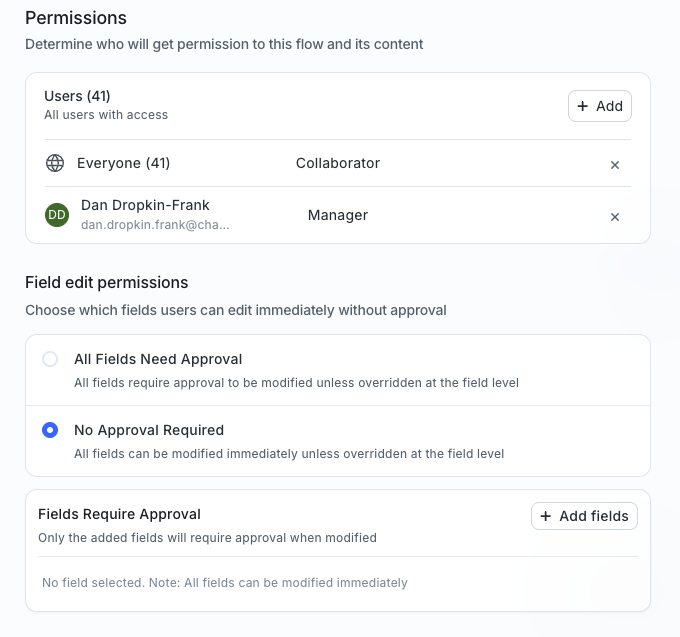
Users Displays all users who currently have access to this flow. You can add new members by clicking + Add and selecting Everyone, specific Members, or Groups.
Each user or group is assigned one of three roles:
Role Description | |
Manager | Full control over every aspect of the flow |
Collaborator | Can view the workflow and its contents |
Requester | Can submit and view only their own requests |
To remove a user or group, click the × next to their entry. To change a role, click the role dropdown next to their name.
Field edit permissions.
The Permissions tab also controls which fields in this flow can be edited immediately and which require approval before changes take effect. Choose one of two default modes:
All Fields Need Approval — every field requires approval before changes are accepted, unless explicitly overridden at the field level.
No Approval Required — every field can be modified immediately, unless explicitly overridden at the field level.
Fields Require Approval. When "No Approval Required" is the default, you can still designate specific fields that should always require approval when modified. Click + Add fields to select them. Only the fields added here will require approval; all others can be modified immediately. If no fields are selected, all fields can be modified immediately.
Notifications
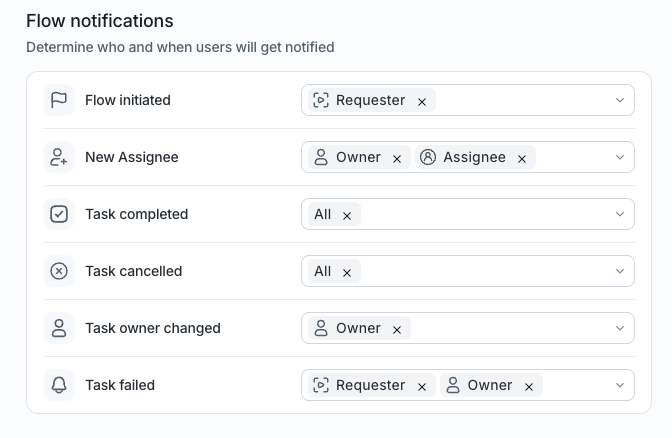
The Notifications tab defines which users are automatically notified when specific events occur during a task's lifecycle.
For each event, you can configure one or more recipient types: Owner, Assignee, Requester, or All.
EventDescription | |
Flow initiated | Triggered when a flow is initiated |
New Assignee | Triggered when a task is assigned to someone |
Task completed | Triggered when a task is marked as complete |
Task cancelled | Triggered when a task is cancelled |
Task owner changed | Triggered when the task's owner is updated |
Task failed | Triggered when a task encounters a failure |
To update who receives a notification for an event, click the dropdown next to that event and add or remove recipient types. Click × on a tag to remove a recipient from that event.
Naming
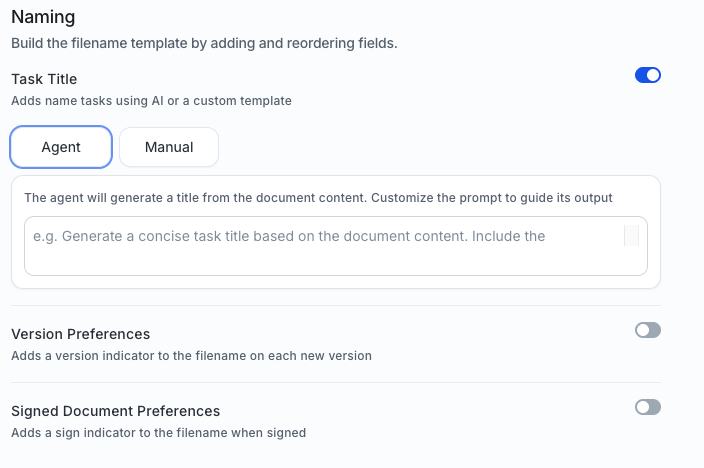
The Naming tab lets you build the filename template for documents produced by this flow by adding and reordering fields. It contains three independent controls.
Task Title. When enabled, Chamelio names tasks using AI or a custom template. Two modes are available:
Agent — The Chamelio agent generates a title from the document's content. Use the prompt field to guide its output. You can reference dynamic values with @ tokens such as @Workflow name and @Current date.
Manual — Define the filename template directly. Type @ to insert naming fields, then reorder them as needed. A live Preview shows how the resulting filename will look.
Version Preferences. When enabled, you can control the name of the stored version in the negotiate step, e.g., a version indicator is added to the filename each time a new version is created.
Signed Document Preferences. When enabled, When enabled, you can control the name of the contracts signed in the sign step.
Reminders
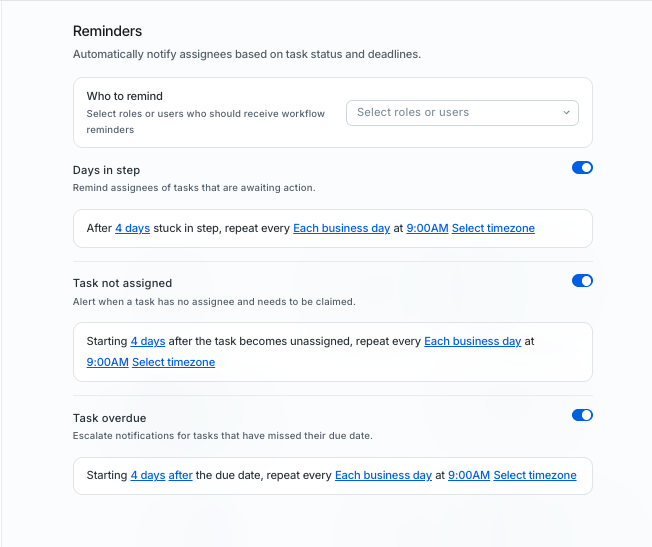
The Reminders tab lets you configure automatic notifications sent to assignees based on a task's status and deadlines within this flow. It contains one shared control plus three independent reminder types.
Who to remind. Select the roles or users who should receive workflow reminders. This selection applies across all reminder types enabled below.
Days in step. When enabled, assignees are reminded of tasks that are awaiting action. You set a threshold (e.g., after 4 days stuck in a step) and a repeat cadence (e.g., each business day at a chosen time), with an option to select the timezone used for scheduling.
Task not assigned. When enabled, an alert is triggered when a task has no assignee and needs to be claimed. You define how long after the task becomes unassigned the first alert fires, then a repeat cadence and time (e.g., each business day at a chosen time), with a timezone selector.
Task overdue. When enabled, notifications escalate for tasks that have missed their due date. You define how long after the due date the first alert fires, then a repeat cadence and time, with a timezone selector.