My Tasks: Your Central Hub for Legal Workflow Action Items
Last updated: September 7, 2026
Overview
My Tasks is your personalized command center for managing all the actions flowing through your legal workflows. Every approval, signature, review, or response required from you appears here, organized and ready for action. Think of it as your legal inbox—where workflow requests come to be prioritized and completed.
With My Tasks, you can:
View all tasks requiring your attention in one place
Filter and organize tasks by status, priority, and workflow
Access detailed task information without leaving the interface
Track the progression of workflows you're involved with
Complete approvals, signatures, reviews, and other actions directly
What You'll Find in My Tasks
The Task Table displays comprehensive information about each task you're involved with. Every task shows the essential details you need to make quick decisions:
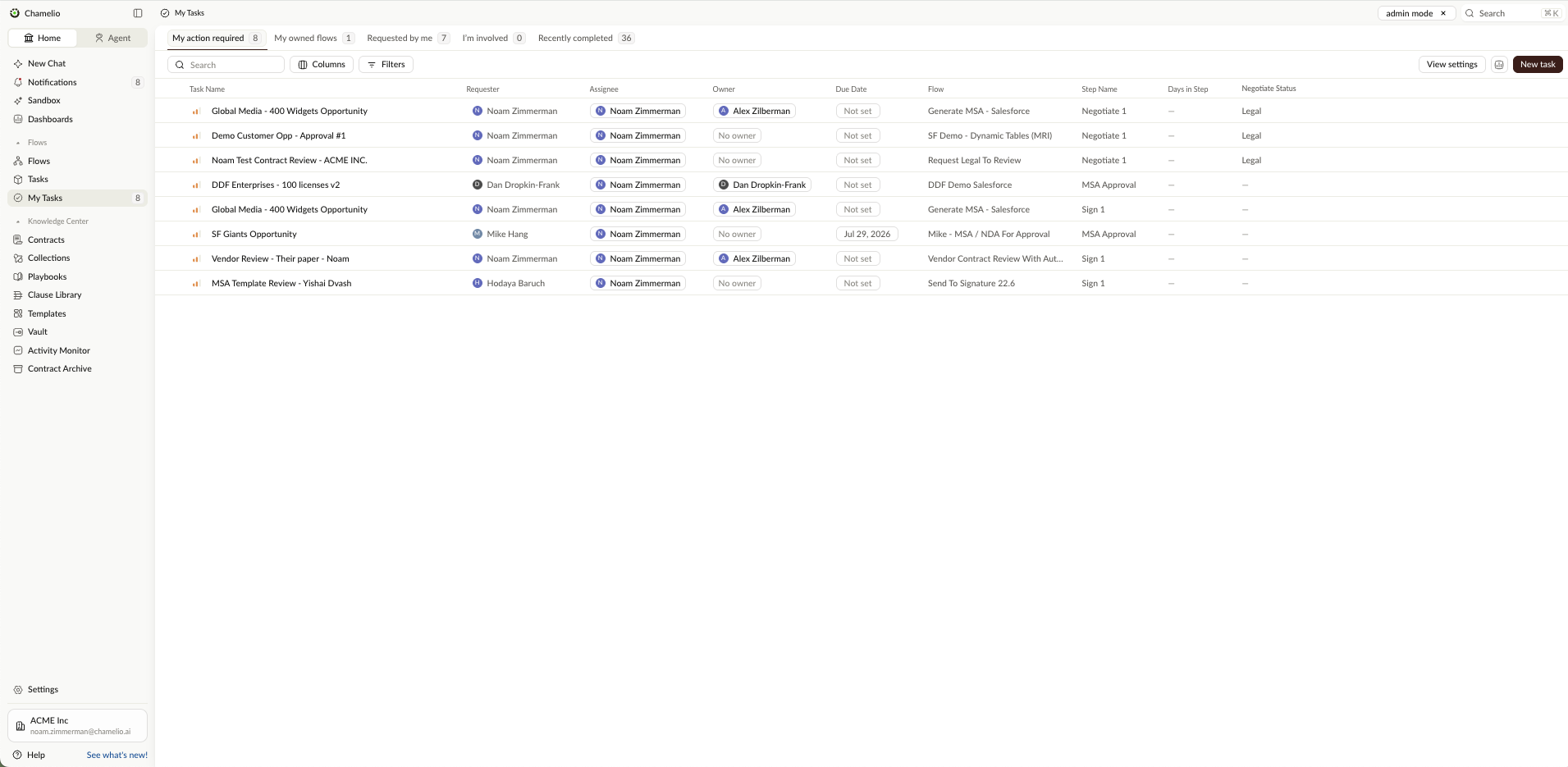
The main columns include:
Task Name: The specific action you need to take (e.g., "Team Request Collection", "Workflow: Contract Review and Smart Routing")
Requester: The person who initiated the workflow
Task Description: What action is required (Approval required, Signature required, Review required, Response required)
Documents / Fields: The document or workflow element you're acting on
Assignee: Who is assigned to complete this task (typically you)
Organizing Your Tasks with Tabs
My Tasks displays your work across five distinct categories, making it easy to focus on what matters:
My action required: Tasks waiting specifically for your action right now. This is where you'll focus your immediate attention.
My owned flows: Flows that you are the owner of. Use this tab to monitor the workflows under your ownership.
Requested by me: All workflows you started. Great for tracking the progress of processes you've set in motion.
I'm involved: Tasks in workflows where you play a role, but may not be the primary assignee.
Recently completed: Tasks you've already finished. Use this to reference recent actions or verify completion.
Each tab displays the count of tasks within that category, helping you see at a glance how many items need attention.
Customizing Your View
Columns
Use the Columns button to show or hide information fields. You can add or remove columns like Due Date, Status, Current Step, Flow, and Last Updated to create a view that works best for you. The available columns include Task Name, Initiator, Task Description, Documents / Fields, Assignee, Owner, Due Date, Flow, Status, Current Step, Last Updated, and Created.
Filters
Click Filters to narrow down your task list by:
Assignee: Show tasks assigned to specific team members
Owner: Filter by who owns the workflow
Requested by: See tasks from specific originators
Priority: Focus on urgent, high, medium, or low priority tasks
Flow: Filter by specific workflow names
Step: Show tasks at particular workflow stages
Filters are powerful for staying focused—for example, you might filter to show only "Approval required" tasks assigned to you with "Medium" priority.
Search
Use the search field to quickly find tasks by name. Start typing to instantly filter the table to matching results.
Understanding Task Details
When you click on any task, you open its full detail view where you can see comprehensive information and take action.
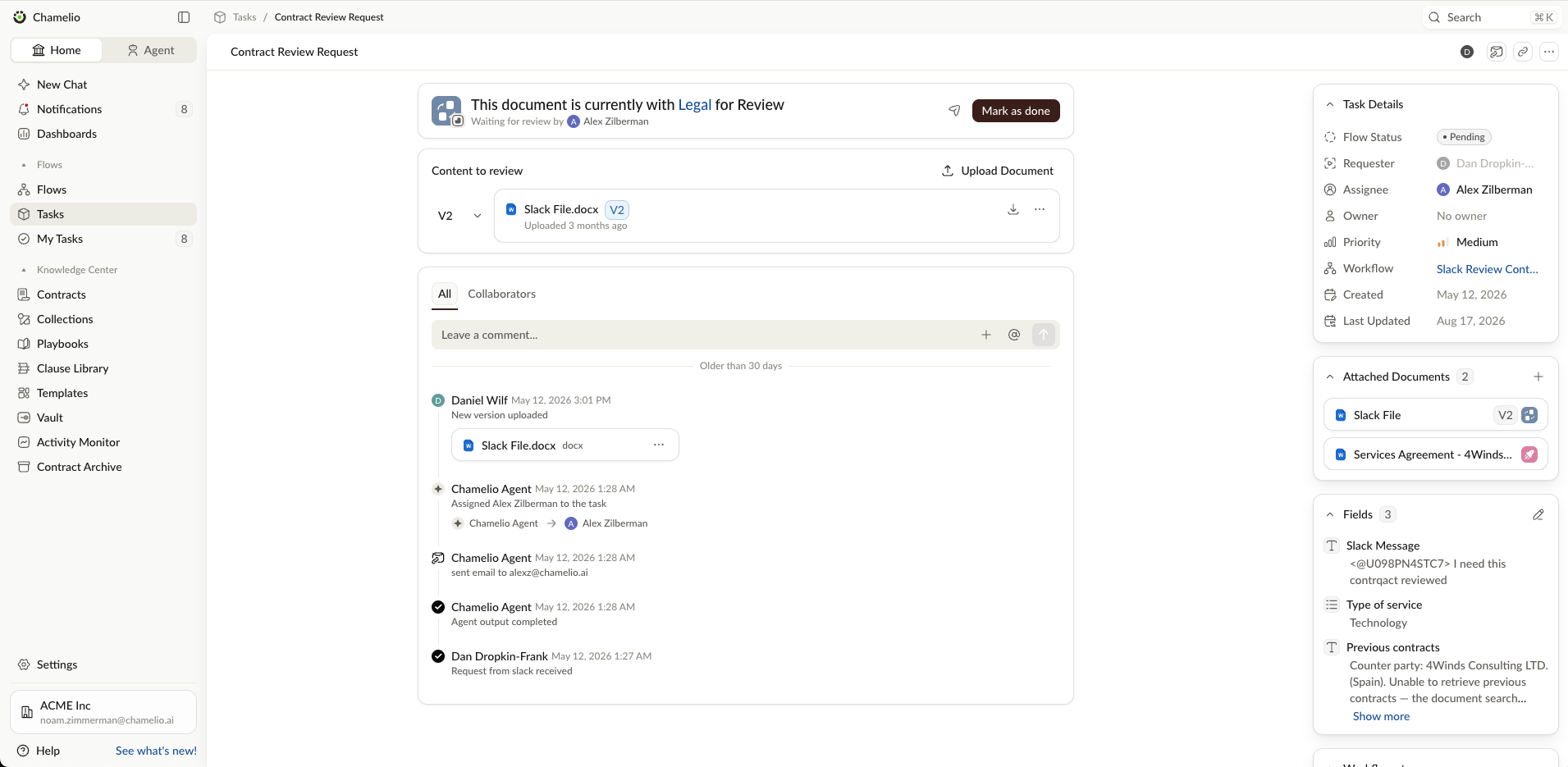
The detail view shows:
Left Panel - Task Content:
Relevant information about the specific task
Right Panel - Task Details:
Status: Current state of the task
Requester: who created the task
Assignee: Who's responsible for the task
Owner: Who owns the overall workflow
Collaborators: Team members working on this task
Priority: Task urgency level
Workflow: Which workflow this task belongs to
Created: When the task was created
Last Updated: When the task was last updated
Attached Documents: Files associated with the task
Fields: Custom workflow data
Workflow Steps: The progression of steps in the workflow
Taking Action on Tasks
Most tasks require specific actions. Common task types include:
Approval required: Review the document or request and click "Approve" to move the workflow forward
Signature required: Sign the document using the signature capture interface
Review required: Examine the content and provide feedback or clearance
Response required: Answer a question or provide information the workflow needs
Pro Tips for Using My Tasks
💡 Stay on top of urgent items: Check "My action required" regularly—this is where time-sensitive approvals and signatures wait. Set aside dedicated time each day to process these tasks.
💡 Use tabs strategically: Filter by "Recently completed" to audit your recent actions or verify that approvals went through as expected.
💡 Filter by priority: When you have many tasks, filter by "Medium" or "High" priority to focus on what matters most.
💡 Leverage custom columns: Add "Due Date" and "Priority" columns to your view to spot urgent items at a glance.
💡 Reference the workflow: Click the workflow name in the task details to understand the broader process and how this task fits into the bigger picture.