Custom Columns in collections
Last updated: January 6, 2026
Extract data specific to a single collection by creating custom columns tailored to your needs. This feature allows you to define new data fields that populate only for documents within that collection, giving you flexibility to organize contract information your way.
How to Create a Custom Column
To extract data specific to a single collection, use Custom Columns. Simply follow these steps:
Open your collection and go to the Documents tab.
Click on the "Custom Column" button in the toolbar.
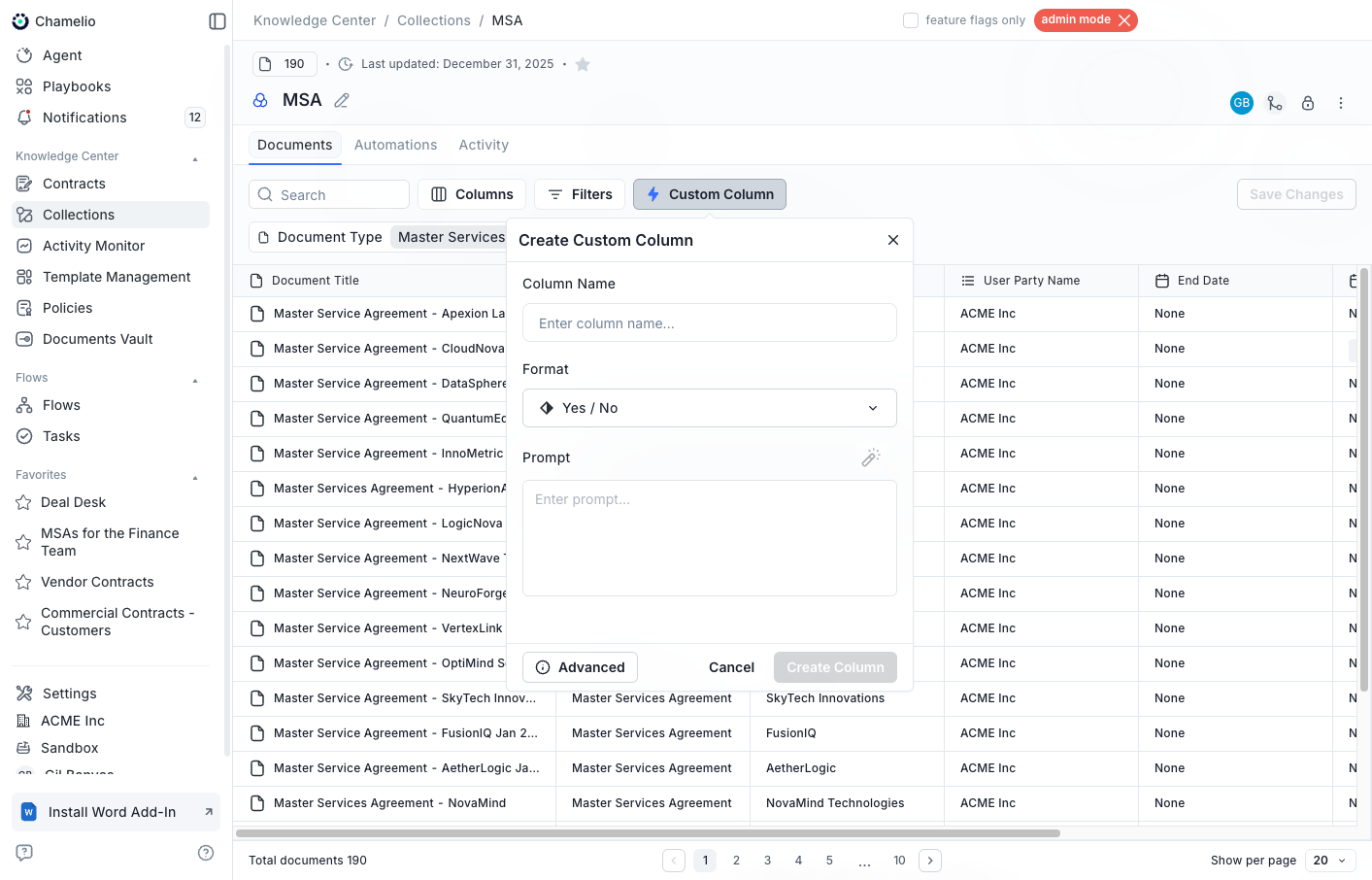
Enter a Column Name - Give your column a clear, descriptive name that reflects the data you're extracting (e.g., "Confidentiality Clause Present," "Payment Terms").
Choose a Format - Select how the data should be displayed:
Text - For open-ended responses- Clause -
For full clause text extraction
Number - For numeric values
Date - For date information
Yes / No - For binary yes/no answers
Select - For predefined list options
Write your AI Prompt - Enter a clear prompt that defines what information you want to extract (e.g., "Does this contract contain a confidentiality clause?").
Click "Advanced" to access the advanced testing and refinement features.
The Advanced Feature
The Advanced mode allows you to test your prompt on sample documents before applying it to your entire collection, ensuring accuracy and quality.
How to Use Advanced Mode
Enter your basic information (Column Name, Format, Prompt) as described above.
Click the Advanced button to enter Advanced Mode.
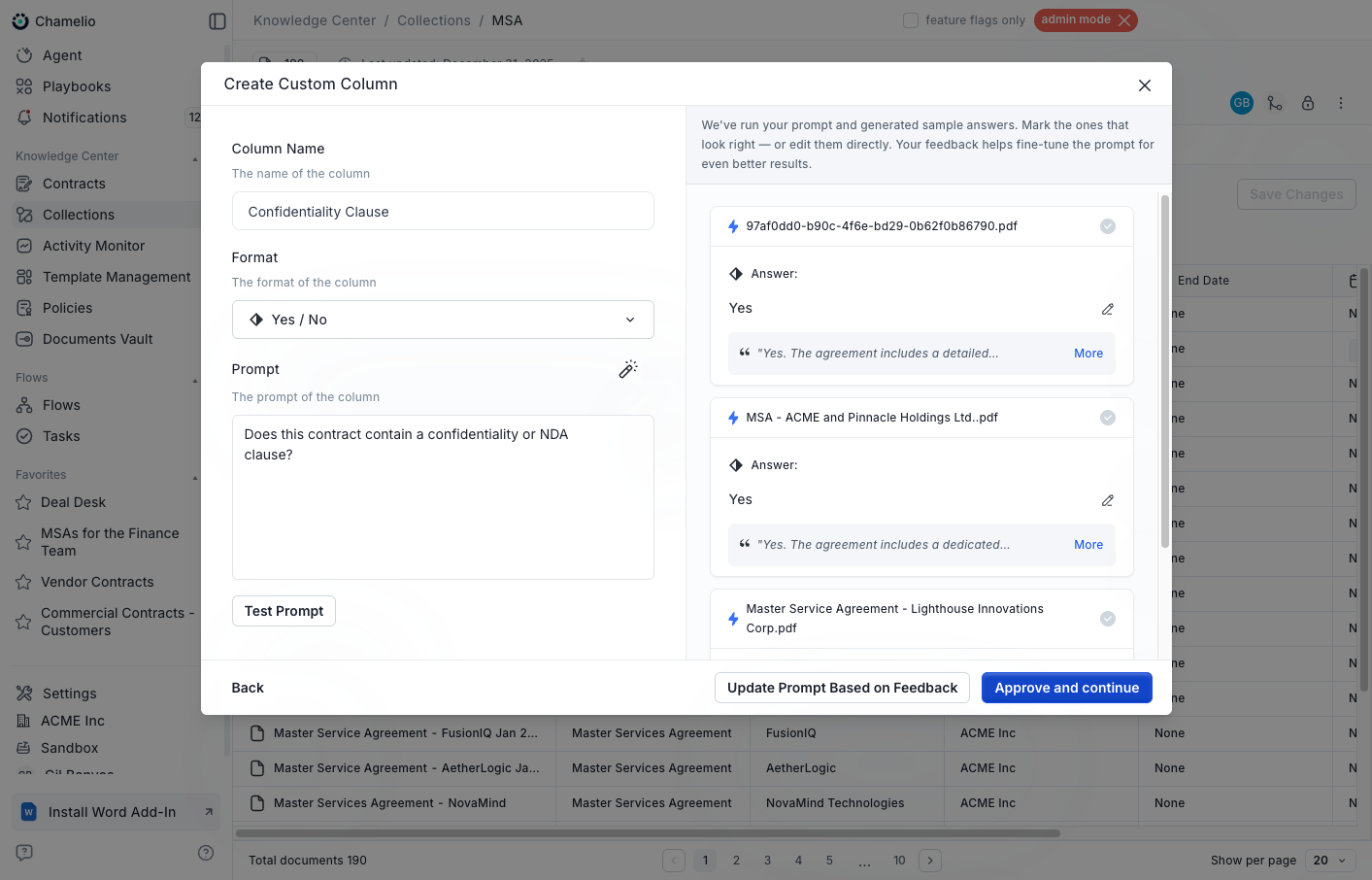
Your prompt will be sent to a sample of documents in your collection for immediate testing.
Chamelio will generate sample answers from multiple contracts and display them alongside the source documents.
Review the Results
For each sample answer, you can:
Mark as correct - Click the checkmark icon to accept an answer if the result looks right
Edit directly - Use the edit button (pencil icon) to modify the answer if it needs adjustment
View full context - Click "More" to see the complete reasoning and quote from the document that supports the extraction
After Testing
Click "Update Prompt Based on Feedback" to refine your prompt based on the sample results you've marked. Chamelio will enhance the prompt automatically.
Click "Approve and continue" to proceed with column creation using the current or updated prompt.
You can iterate multiple times, testing and updating until you're satisfied with the extraction quality.
Key Tips
💡 Use the Advanced feature before applying columns to your full collection - this ensures your prompts work accurately across all documents.
💡 Edit sample answers directly if Chamelio is close but not quite right - your feedback trains the system to extract data more precisely.
💡 Review the reasoning behind each answer by clicking "More" to understand how Chamelio interprets your prompt.
💡 Look for consistent patterns in the results - if most answers are correct but one is off, updating the prompt may help.