Documents Vault
Last updated: September 2, 2026
Store, organize, and manage all your legal documents in one secure, centralized location.
The Documents Vault is Chamelio's document management system. It provides a structured way to upload, organize, and control access to your non-contracts - policies, and other legal files. Once indexed in Vault, your documents become part of Chamelio's knowledge engine and can power intelligent workflows across the platform.
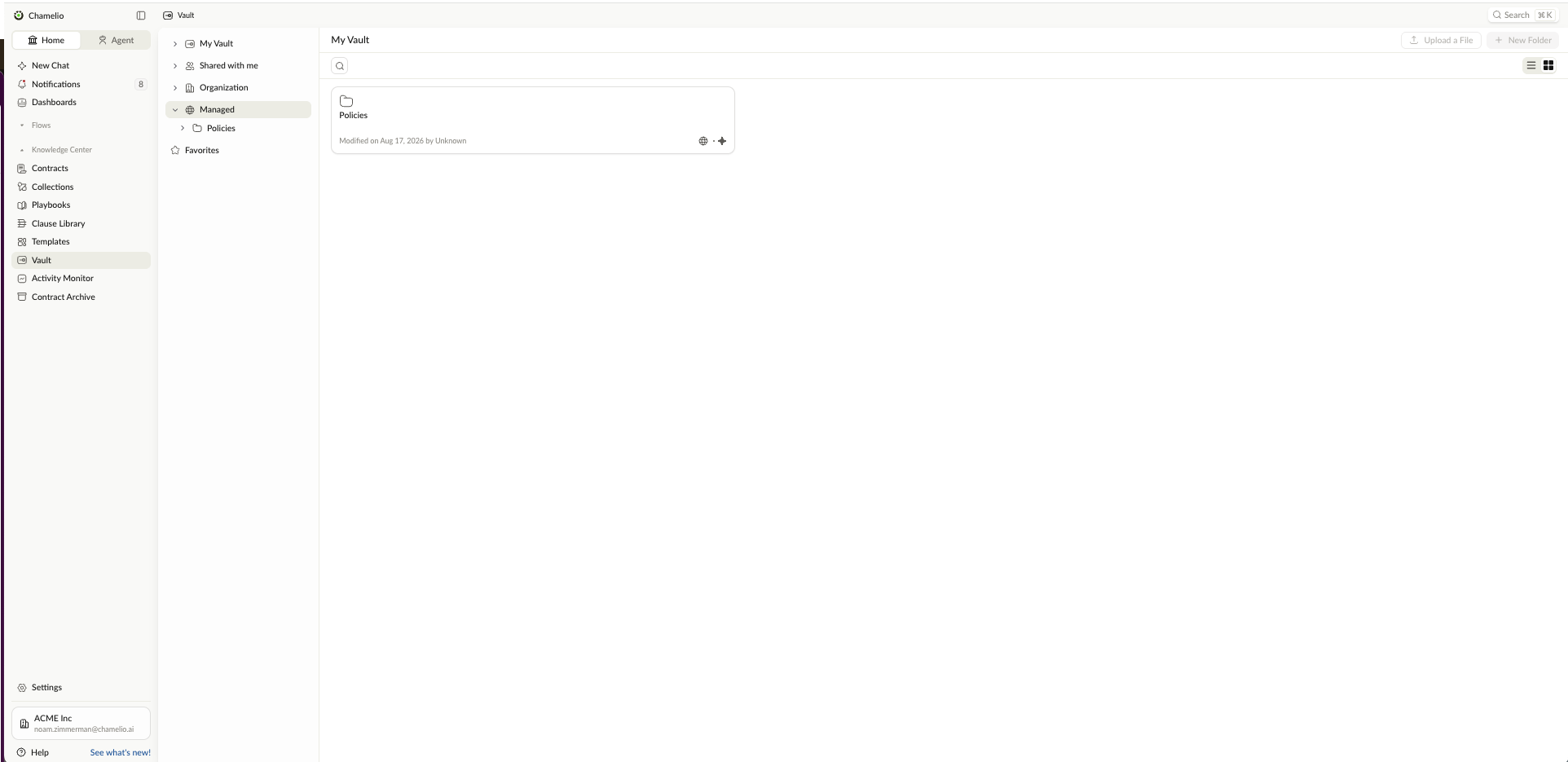
Accessing the Documents Vault
To access the Documents Vault, navigate to the Knowledge Center section in the left sidebar and click Documents Vault.
The Vault opens to the Home view, showing your folder structure in a table format. Each folder displays key information including Name, Privacy level, Indexed status, date Added, date Modified, and Owner.
Understanding the Vault Interface
The Vault displays documents and folders in a table with the following columns:
Name — The folder or document title. Click to open a folder and view its contents.
Privacy — Shows the access level for each folder:
Shared — Accessible to specific team members you designate
Organization — Visible across your entire organization
Private — Only accessible to the owner
Indexed — Indicates whether the folder or document is indexed in Chamelio's search and AI engine. Indexed items power workflows like Negotiate, playbooks, and intelligent search. Click the Index button to toggle indexing on.
Added On — The date the folder or document was created.
Modified On — The date of the most recent change.
Owner — The team member who created or owns the folder/document.
Working with Folders
Creating a New Folder
To create a folder in your Vault:
Click the New Folder button (top right of the main Vault view)
Enter a folder name
Set the privacy level (Shared, Organization, or Private)
Click Create
Your new folder appears in the Vault and is ready to receive documents.
Navigating Folders
Click on any folder name to open it and view its contents. You'll see a breadcrumb navigation at the top (e.g., Home > Contract Drafts) that shows your location and lets you navigate back.
Managing Folders
Each folder has an Actions menu (three dots) with the following options:
Add to Favorites — Star the folder so it appears in your Favorites list on the left sidebar for quick access.
Index this folder — Turn indexing on/off for the entire folder. Indexed folders appear in Vault search results and power AI-assisted workflows.
Share — Control who can access this folder. You can share with specific team members, your organization, or keep it private.
Rename — Change the folder name.
Delete — Remove the folder and all its contents. This action cannot be undone.
Uploading and Managing Documents
Uploading Files
To add documents to your Vault:
Click Upload a File (top right)
Select one or more files from your computer
Choose which folder to upload to
Files are immediately available in the Vault
You can also drag and drop files directly into a folder.
Document Actions
Each document in the Vault has action buttons and an actions menu:
Add to Favorites — Star the document to add it to your Favorites list for quick access.
Index — Toggle indexing for the document. Indexed documents appear in Vault search and can be used by playbooks and AI workflows.
Download — Download the document to your computer.
The Actions menu (three dots) for documents provides additional options like sharing and downloading.
Searching Your Vault
The Vault search bar at the top lets you quickly find documents by name or content.
Controlling Access with Privacy Settings
The Document Vault allows you to control access at both the folder level and the individual document level, ensuring appropriate confidentiality and visibility across your organization.
Folder-level permissions apply to all documents within that folder.
Document-level permissions allow you to restrict or grant access to a specific document without affecting the rest of the folder.
Privacy Levels
Private — Only the owner can access this folder. Use for sensitive legal documents, privilege materials, or work-in-progress items.
Shared — You explicitly grant access to specific team members. Visible only to authorized users.
Organization — Visible to your entire organization. Useful for standard templates, commonly used contracts, or knowledge that the whole team needs.
How to Manage Access
To update privacy settings in the Document Vault:
Navigate to Document Vault.
Locate the relevant folder or document.
Click Privacy
Open the File Access tab.
Select Private/Shared/Organization.
Changes take effect immediately and apply according to the selected level (folder or document).
Indexing Documents for Smart Workflows
Indexing is what transforms your Vault from simple storage into an intelligent knowledge engine. When you index documents, they become searchable and can power Chamelio's AI capabilities.
What Indexing Does
Indexed documents:
Appear in Chamelio's universal search results
Power the Negotiate feature for contract review and redlining
Feed playbooks with historical language and precedents
Enable AI-driven searches across your legal knowledge base
When to Index
Index strategically. Mark documents as indexed if:
Your team regularly references them
They contain standard legal language you want to reuse
They're key agreements that should inform playbooks
You want them discoverable in Vault search
You can index entire folders at once or select individual documents.
How to Index
Click the Index button next to a document or folder
The indexed status toggles on — the button now shows active indexing
To remove from indexing, click the Index button again
Indexing happens instantly. Your documents are immediately available for search and workflows.