Configure Knowledge Center General Settings
Last updated: September 13, 2026
Control how Chamelio determines whether agreements are active or executed, splits uploaded documents, and chooses main agreements when linking related documents.
Getting Started
Open Settings, then select General under Knowledge Center. After updating your preferences, click Save Changes.
Keep Auto-Renewing Agreements Active
Enable Activate based on auto-renewal to keep agreements with auto-renewal active, even after their current term ends.
An auto-renewing agreement remains active unless you upload a termination notice or manually change its status to Inactive.
Set Signature Requirements for Executed Documents
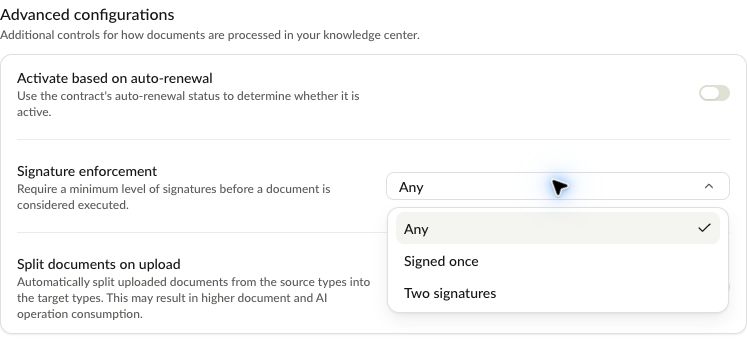
Signature enforcement controls the minimum signature level required before Chamelio considers a document executed. This helps distinguish signed agreements from documents that have not met your organization’s signature requirements.
Choose from:
Any
Signed once — Require at least one signature.
Two signatures — Require at least two signatures.
For example, select Two signatures if your process requires two signatures before an agreement should be treated as executed.
Automatically Split Uploaded Documents
Split documents on upload lets Chamelio separate uploaded documents into individual documents according to source and target document types.
This is useful when a single uploaded file contains multiple documents that you want to manage separately. Source types identify the uploaded document types to split; target types identify the document types to separate out.
Enable Split documents on upload to use automatic splitting.
Note: Splitting may produce additional documents and require additional AI processing, increasing document and AI operation consumption.
Choose Which Agreements Take Priority When Linking
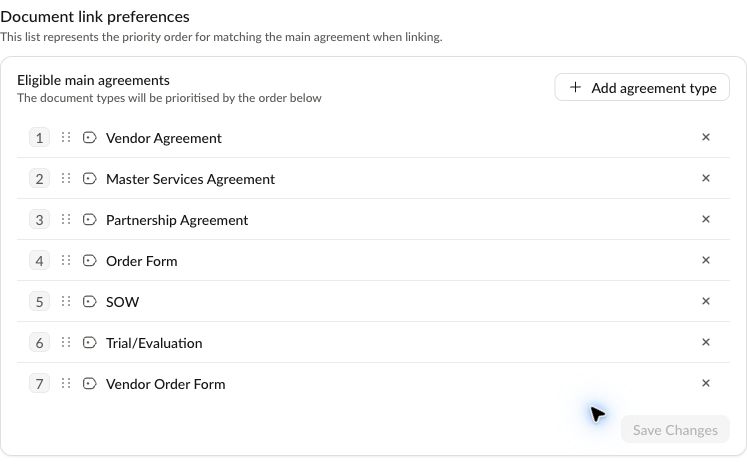
Chamelio can link related documents to a main agreement. Document link preferences controls which document types are eligible to serve as that main agreement and their priority during matching.
For example, if you want a Master Services Agreement prioritized over an Order Form, place it higher in the list. The order guides matching; it does not simply change how documents are displayed.
To update your preferences:
Under Eligible main agreements, click Add agreement type.
Search for and select the types you want to include.
Use the Reorder handles to arrange them from highest to lowest priority.
Remove any types that should no longer be eligible as main agreements.
Click Save Changes.
To see how related documents are grouped under their main agreement, see Consolidated View.