Getting Started with the Agent Builder
Last updated: July 12, 2026
The Agent Builder is the chat panel on the left side of the workflow editor, sitting alongside the visual canvas where your flow's steps and connections are displayed. Instead of manually dragging and configuring every step, you can describe what you want in plain language, and the agent will draft the workflow for you, step by step.
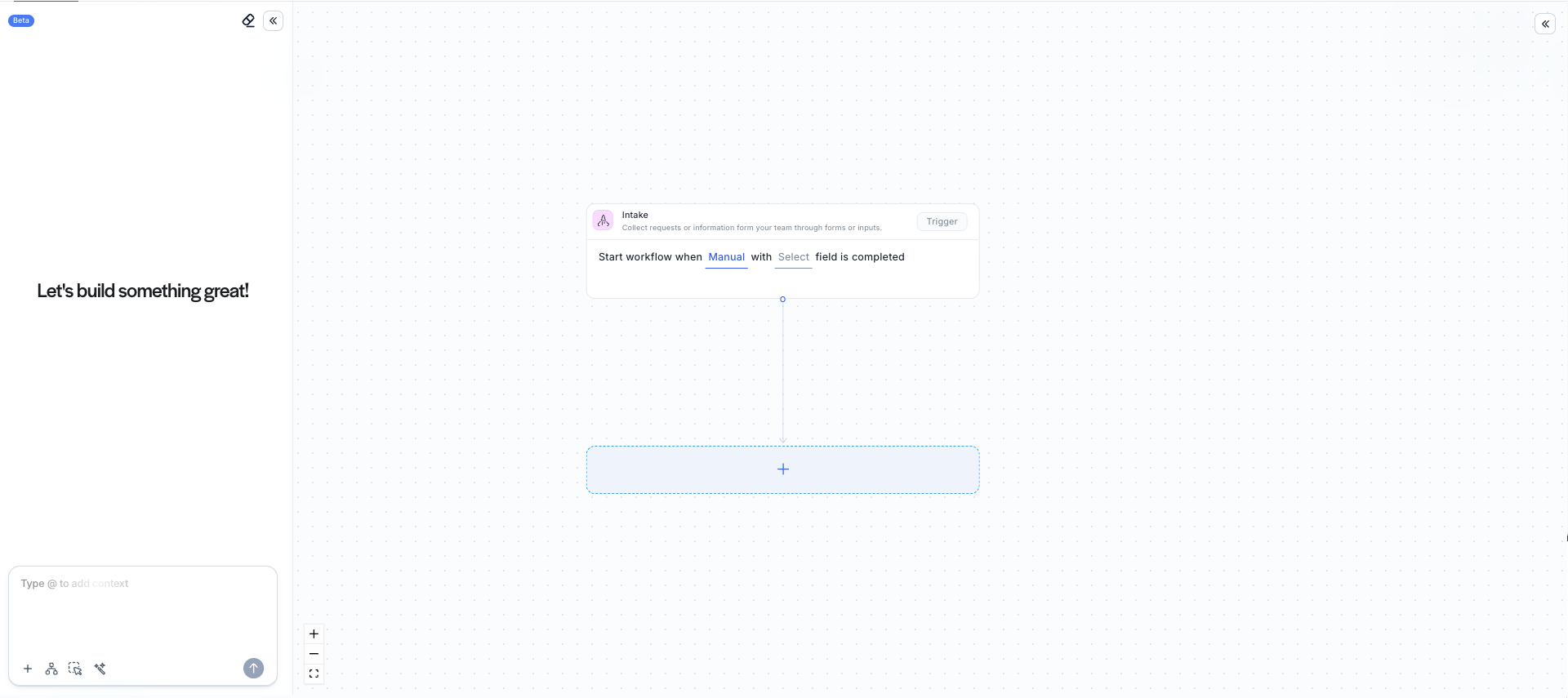
When you open a new or existing flow, the panel starts with a simple prompt box at the bottom labeled "Ask me to follow-up..." and a friendly "Let's build something great!" message in the canvas area if the flow is empty. Typing a request here, such as asking what the agent can help with, produces a detailed response outlining the kinds of workflows it can build, including contract workflows, request and approval flows, document generation, review and negotiation processes, and compliance checks.
Giving the Agent Context
Above the message box, four small icons let you enrich your requests before sending them. The plus icon lets you add context, which opens a menu referencing your existing content, including contracts, playbooks, templates, users, and your document vault, so the agent can pull in real data rather than guessing. The second icon adds a flow variable, useful when you want the agent to reference a value that changes depending on how the workflow runs. The third icon, labeled "Select step," lets you point directly at a specific node on the canvas so the agent focuses its edits there rather than the whole flow. The fourth icon, the sparkle wand, enhances your prompt with AI-powered suggestions, helpful if you're not sure how to phrase what you want.
Managing the Conversation
At the top of the panel, an eraser-style icon clears the current chat history if you want to start fresh, and a collapse arrow lets you hide the panel entirely to give the canvas more room, with a matching arrow on the canvas side to bring it back.
Working Alongside the Canvas
The Agent Builder doesn't replace the visual canvas, it works with it. Above the canvas, a toggle lets you switch between View mode, for reviewing the flow as-is, and Edit mode, for making direct changes yourself. You can use the agent to draft or adjust steps and then switch to Edit mode to fine-tune details manually, or add steps directly from the canvas using the plus button between nodes, which opens a library of step types such as Agent, Generate, Notify, Negotiate, Sign, Collect, Customization, and Condition.