User Management
Last updated: August 14, 2026
The Settings page allows Admins to manage users, assign roles, and control access to Chamelio.
Each user has a platform role that determines what they can access and manage within Chamelio. Some users can also be designated as Agent Users, which gives them access to Chamelio Agents..
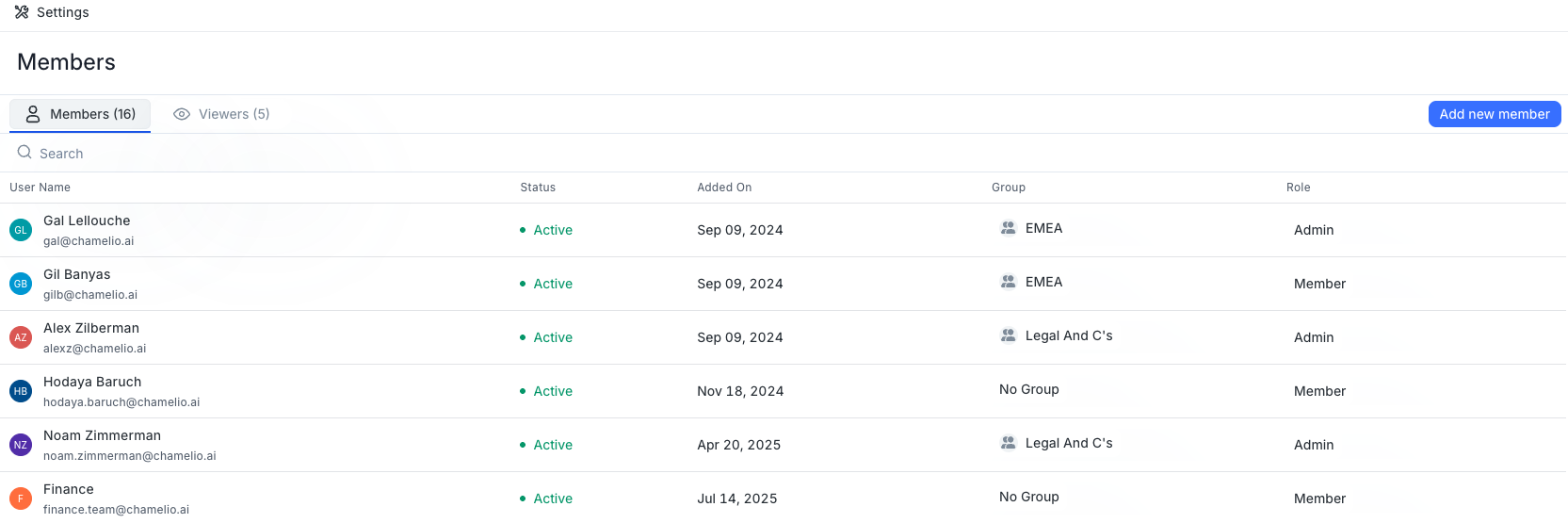
Adding new users is a multi-step process:
Locate the email input field below the user list
Enter each email address, pressing "Enter" after each one
Once you've entered all email addresses, click the "Add Users" button on the right to complete the process
When new users are added, they will receive a system invitation email. This email contains instructions for accessing the system, where they can either sign in using Google/Microsoft SSO or create their own password.
Platform roles
Chamelio supports four platform roles:
Admin
Has unrestricted access and full control of the platform, including Settings and User Management.
Editor
Has broad access across the platform, including creating and managing content, but cannot manage Settings or users.
Member
Can work with existing documents, collections, and other content, with more limited creation and administrative permissions.
Viewer
Has limited platform access. Viewers can only access collections shared with them and the documents included in those collections, making this role useful for stakeholders who only need access to specific information. Viewers are also able to initiate workflows they have permission to launch.
Your platform role determines your permissions within Chamelio. It does not determine whether you have access to Chamelio Agents or whether you can submit workflow requests.
Agent Users
Agent User is an additional designation that can be assigned to an Admin, Editor, or Member.
Agent Users can access and use Chamelio Agents across supported experiences, including:
The Chamelio application
The Microsoft Word Add-in
Slack
Other supported Agent integrations
Agent User access is separate from platform roles. For example, two Members can have the same platform permissions, while only one of them is designated as an Agent User and can therefore use Chamelio Agents.
Permission Matrix
Permission | Admin | Editor | Member | Viewer |
Edit system Settings | ✓ | ✗ | ✗ | ✗ |
Upload contract | ✓ | ✓ | ✓ | ✗ |
Delete contract | ✓ | ✓ | Own | ✗ |
View contract | ✓ | ✓ | ✓ | ✓ |
Publish workflow draft | ✓ | ✓ | ✗ | ✗ |
Delete workflow | ✓ | ✓ | ✗ | ✗ |
Create workflow draft | ✓ | ✓ | ✗ | ✗ |
Create workflow | ✓ | ✓ | ✗ | ✗ |
Launch workflow | ✓ | ✓ | ✓ | ✓ |
Create playbook | ✓ | ✓ | x | x |
Edit Playbook | ✓ | ✓ | x | x |
Audit log | ✓ | ✓ | x | x |
Can see all workflows | ✓ | ✓ | x | x |
Can enter builder of every workflow | ✓ | ✓ | x | x |
Activity monitor | ✓ | ✓ | Own | Own |
Create Collections | ✓ | ✓ | ✓ | x |
Create Custom Columns (in collections created by the user, or shared with it as an Editor) | ✓ | ✓ | ✓ | x |