Managing Permissions
Last updated: August 25, 2026
Control which features and document types members and groups can access across your organization.
Use the Permissions page when you want to decide who can use specific Chamelio features, or who can access contracts by document type.
Getting Started
Go to Settings.
Under Administrations, click Permissions.
Choose one of the available permission views:
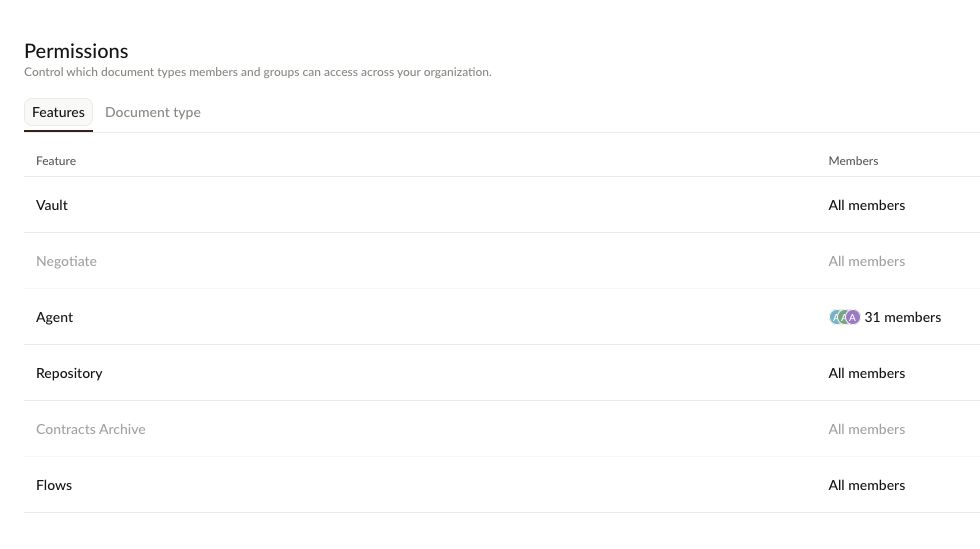
Features: control access to Chamelio modules.
Document type: control access by contract or document category.
Feature Permissions
The Features tab shows each feature and who can access it.
From this view, admins can see whether a feature is available to All members or limited to a specific number of members.
Update Feature Access
Open the Features tab.
Click a configurable feature.
Review the current member list.
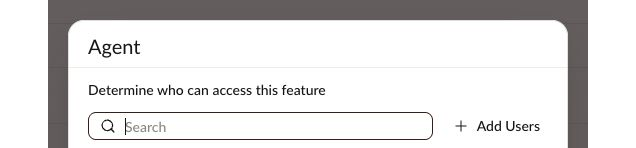
Use Search to find existing members.
Click Add Users to add more users.
Click Save to apply changes.

The Add Users menu shows which users already have access and lets you search for additional users. If no users match your search, Chamelio displays an empty state.
Document Type Permissions
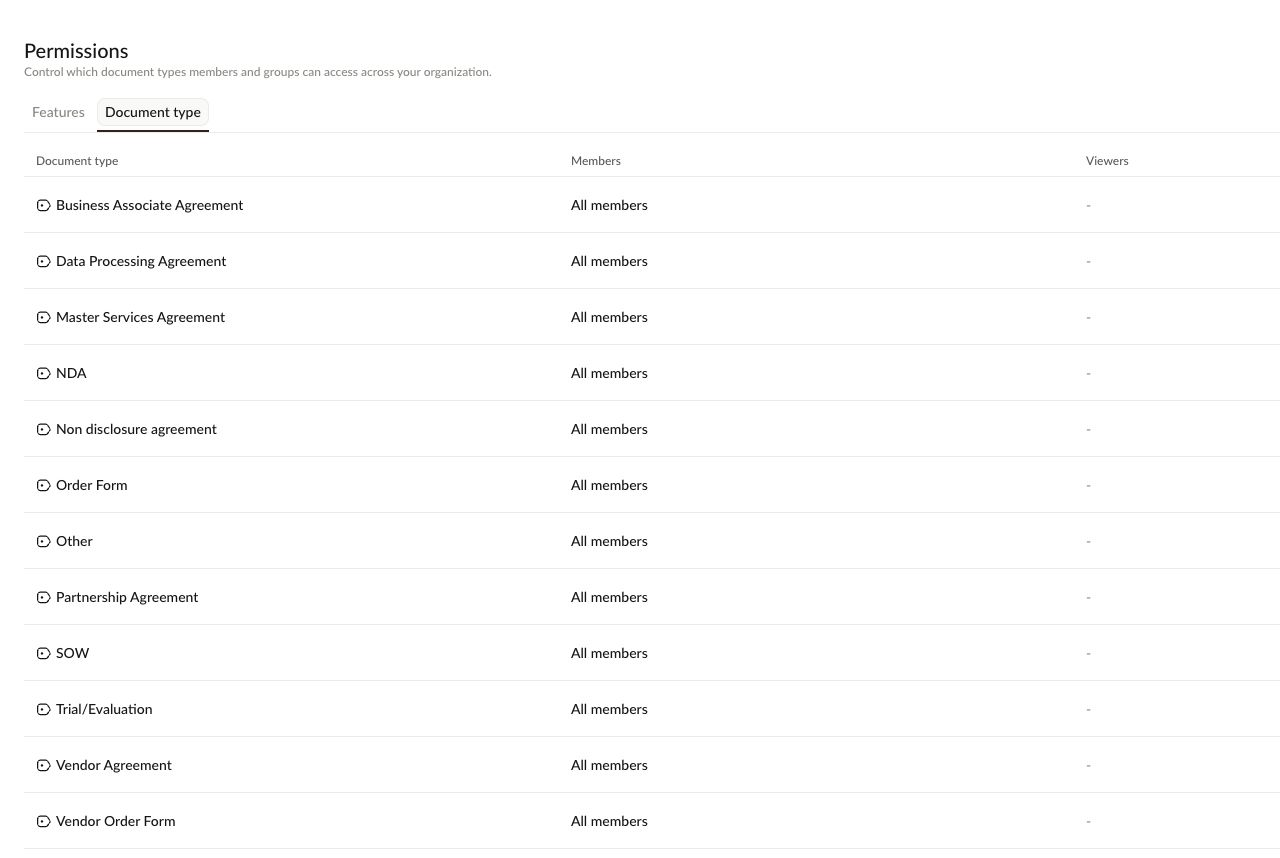
The Document type tab controls access by document category, such as NDA, Order Form, SOW, or Vendor Agreement.
Each row shows:
Document type: the contract category.
Members: users with member-level access.
Viewers: users with viewer-level access.
Update Access for a Document Type
Open the Document type tab.
Click the document type you want to manage.
Review the current access settings.
Use Add Users to add members, viewers, or groups.
Click Save to apply changes.
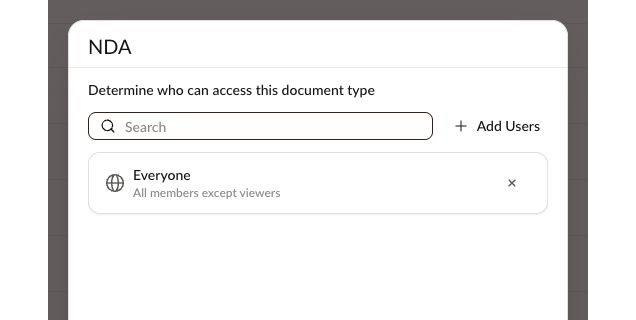
When a document type is available organization-wide, Chamelio shows Everyone with the description All members except viewers.
Tips
Use search when managing long member lists.
Use document-type permissions when access should depend on contract category.
Use feature permissions when access should depend on the Chamelio module itself.
Review changes carefully before saving, especially when removing org-wide access.