Out of Office
Last updated: August 11, 2026
Use Out of office when you’re unavailable and want another user to handle your assigned work while you’re away.
You can set an optional end date and choose a delegate to take over new assignments.
Set your Out of office status
Click your profile name in the bottom-left corner.
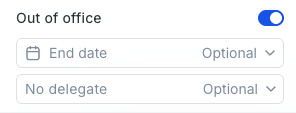
Turn on Out of office.
Select an End date if you want your status to turn off automatically.
Select a delegate if you want another user to handle assignments while you’re away.
Both the end date and delegate are optional.
Set an end date
Select an End date if you know when you’ll be back.
Your Out of office status will automatically turn off at the end of the selected date.
If you don’t select an end date, you’ll remain Out of office until you manually turn the status off.
Choose a delegate
You can select another Chamelio user to handle your assignments while you’re out of office.
When work would normally be assigned to you, Chamelio will assign it to your delegate instead.
You don’t have to select a delegate. If you only want other users to see that you’re unavailable, leave the delegate field empty.
What happens to Flows while I’m out of office?
If you selected a delegate, Chamelio checks your Out of office status when a Flow assigns a step.
If you’re out of office when the step is assigned, the step will be assigned to your delegate instead.
Existing assignments are not automatically reassigned when you turn on Out of office.
What happens when I return?
If you selected an end date, your Out of office status will turn off automatically.
If you didn’t select an end date, open your profile and turn Out of office off manually.
New assignments will then be assigned to you as usual.